Common invoice automation mistakes that lead to duplicate payments are rigid matching rules, poor vendor data, fragmented intake channels, and OCR errors. If you just paid the same bill twice, one of these four gaps let it through.
Below, you’ll get the plain cause of each mistake, a real-world example, and the exact rule or setting that closes it. You’ll also get sample fuzzy-matching rules, a vendor cleanup checklist, an OCR misread checklist, and a simple way to tell an honest mistake from fraud.
What Are Duplicate Payments, and How Often Do They Happen?
A duplicate payment happens when your company pays the same invoice more than once by mistake. Some finance teams put it this way: a duplicate payment is a second payment against a bill you already settled.
Duplicate payments cost you money, waste your team’s time, and strain vendor relationships. The U.S. government even counts duplicate payments as “improper payments,” along with payments for goods you never got.
How often do duplicate payments happen?
Duplicate payments happen more often than most teams think. APQC, a group that benchmarks business processes, tracks how much of each company’s yearly spending goes out as duplicate or wrong payments.
- Top performers: 0.8% of yearly payments are duplicate or wrong.
- Median company: 1.5% of yearly payments.
- Bottom performers: 2% of yearly payments, more than twice the top group.
Other reports of APQC data put duplicate or misfiled payments at 1% to 2.5% a year. Either way, the number is not small. Even top performers still leak money.
How do duplicate invoices enter the accounts payable workflow?
Duplicate invoices enter the accounts payable (AP) workflow through more than one door. Vendors send bills by email, paper mail, PDF, fax, and vendor portals.
When AP teams get invoices by email, paper, or PDF, a clerk may enter one that a teammate already entered. Say a vendor emails your AP inbox on Monday. The same vendor emails a department manager, who forwards the bill on Wednesday. Now the same invoice sits in your system twice.
Duplicate invoices also enter when the bill itself looks “new” to the system. A changed invoice number, a second vendor record, or a scanner misread can all make one bill look like two. The next section walks through each of these mistakes and how to fix it.
6 Invoice Automation Mistakes That Cause Duplicate Payments
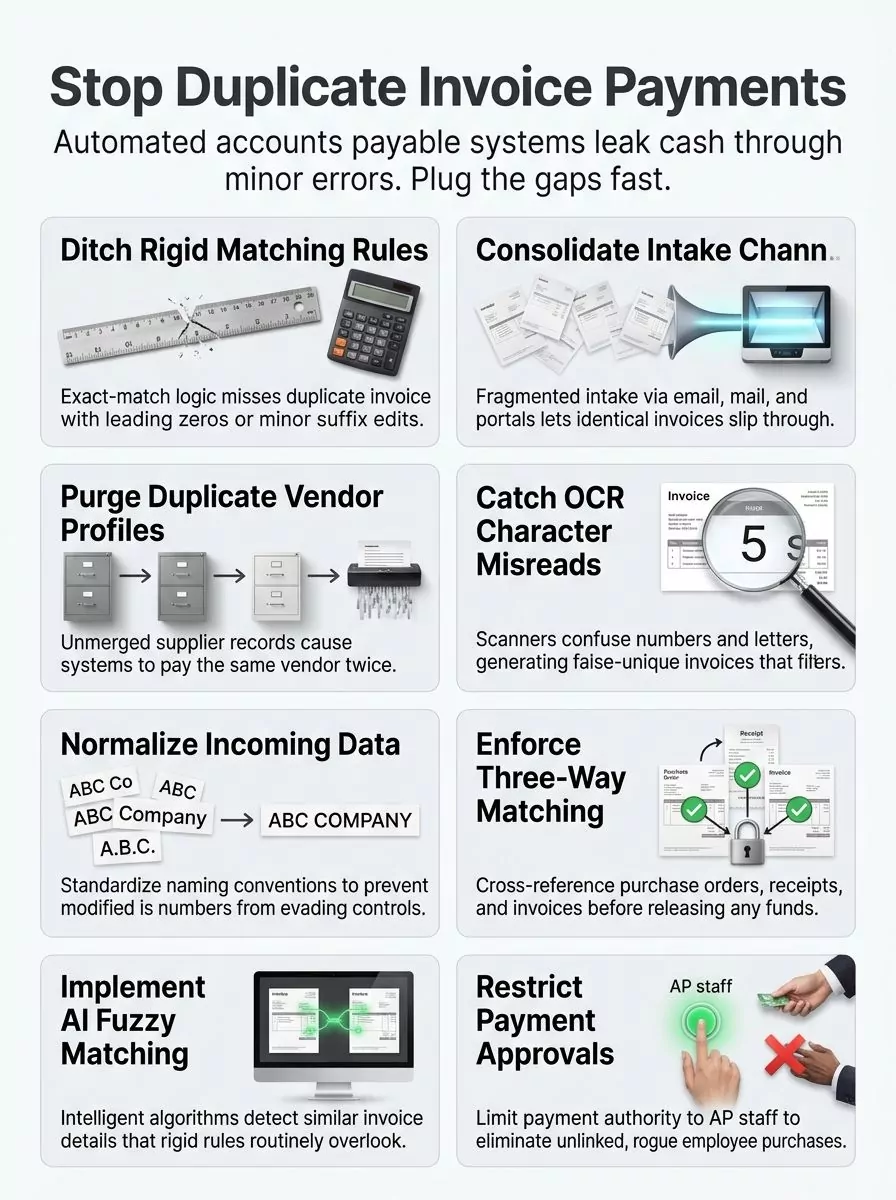
Invoice automation mistakes come down to six gaps. Each one makes a single bill look like two different bills to your software.
Use the list below as a self-check. If you see your own setup in a mistake, the fix is right under it.
Mistake 1: Rigid exact-match rules (why ERP systems miss duplicates)
ERP systems miss duplicate invoices because most of them only check for exact matches. Most ERP duplicate checks run an exact-match rule on a few fields, usually vendor ID plus invoice number plus amount.
- The cause: The ERP (your main accounting system) compares raw text, character by character. If even one character is different, the check passes.
- Example: A vendor sends invoice “001234.” Later, a copy comes in as “1234.” The ERP sees two different invoices and pays both.
- More examples: “INV-1234” vs “INV1234.” “1234” vs “1234-REV” or “1234-COR.” “1234” vs “1234 ” with a trailing space.
- The fix: Clean the data before the check runs (see Mistake 2). Then add “near match” rules on top of the exact rule. You’ll find sample rules in the Steps section below.
A quick test tells you if your system has this gap. In a test company or sandbox, enter a fake invoice as “001234.” Then enter the same vendor, same amount, and “1234.” If the system doesn’t warn you, your duplicate check only does exact matches.
Mistake 2: No standard format for supplier names and invoice numbers
Skipping data normalization lets changed or re-keyed names and invoice numbers slip past your filters. Normalization means putting every entry into the same format before you compare it.
- The cause: Different people and tools enter data in different ways. Nobody cleans the data before matching.
- Example: One clerk types “ABC Manufacturing Inc.” Another types “ABC MFG INC.” A third types “ABC Manufacturing.” Rigid matching rules see three vendors.
- The fix: Set your system (or a pre-check step) to clean each field before it compares invoices:
- Change all letters to uppercase.
- Remove spaces, dashes, slashes, periods, and commas.
- Strip leading zeros from invoice numbers.
- Strip suffixes like “-REV,” “-COR,” “-COPY,” and “-DUP.”
- Turn “Incorporated,” “Inc,” “Corporation,” “Corp,” “Company,” “Co,” and “LLC” into one standard form, or drop them for matching.
- Swap common short forms, like “MFG” to “MANUFACTURING.
Standardized fields cut duplicate risk because the system now compares clean data to clean data. Keep the original text on file, too. You only use the cleaned version for matching.
Mistake 3: Unmanaged vendor data and duplicate vendor profiles
Duplicate vendor profiles let the same bill get paid once from each record. Your duplicate check usually looks inside one vendor ID, so a second ID hides the copy.
- The cause: Anyone can add a vendor. Nobody checks if the vendor already exists. Mergers and acquisitions add more profiles with slight name changes.
- Example: “Acme Corp” is vendor 1001. “Acme Corporation” is vendor 2045. The same invoice goes to each record, and both get paid.
- The fix: Clean up the vendor master file, merge or block the extra records, and lock down who can add vendors. The full step-by-step process is in its own section below.
Vendor master data that sits messy and out of date also raises the risk of paying fake or “phantom” vendors. Keeping accurate vendor records is the base of every other duplicate control.
Mistake 4: Fragmented invoice intake channels
Fragmented intake means invoices arrive through many doors, but your automation only watches one. Copies that come in through the side doors skip your duplicate check.
- The cause: Bills come by direct email to managers, vendor portals, paper mail, and fax. Your capture tool may only scan the main AP inbox.
- Example: A vendor uploads an invoice to your portal. A week later, the vendor mails a paper copy as a reminder. Someone keys in the paper copy by hand.
- The fix: Send every invoice to one intake point. Set up one AP email address and print it on every PO. Forward portal invoices into the same queue. Scan paper mail into that same queue. Tell managers to forward bills, never approve them on their own.
A unified AP system gives you better visibility across departments and vendors. Once everything flows through one door, your duplicate check can see the full picture.
Mistake 5: OCR misreads that create “false-unique” invoices
OCR and data-entry errors create false-unique invoices by changing a character in the invoice number, vendor name, or total. OCR (optical character recognition) is the software that reads scanned bills and turns them into text.
OCR tools sometimes misread key fields like invoice numbers, vendor names, or totals, mostly when vendors use odd formats. Say the original invoice “B12345” came in by email as a clean PDF. A faded paper copy comes in later, and OCR reads it as “812345.” Your system now sees two separate bills.
Manual re-keying does the same thing. A clerk types “12354” instead of “12345.” That one typo makes a duplicate look unique.
OCR error patterns follow a short list of look-alike characters, so you can plan for them. Here is the OCR misread checklist, with a fix for each item:
| Common Misread | Example | Fix |
|---|---|---|
| B and 8 | B12345 read as 812345 | Treat B and 8 as the same character when you compare invoice numbers. |
| 0 and O | INV-10O5 vs INV-1005 | Map the letter O to zero in number fields before matching. |
| 1, I, and l | I234 vs 1234 | Map capital I and lowercase l to the number 1 in number fields. |
| 5 and S | S5021 vs 55021 | Map S to 5 for matching, and flag invoice numbers that mix letters and numbers. |
| Dropped or extra characters | 12345 read as 1245 | Flag same vendor plus same amount when the invoice number is one character off. |
| Wrong total | A decimal point lost on a faded scan | Check that line items add up to the total. Send any mismatch to review. |
Beyond the look-alike map, set up these OCR settings:
- Confidence thresholds: Most OCR tools give each field a confidence score. Set a cutoff for invoice number, vendor, and total. Anything below the cutoff goes to a person.
- Field validation: Check that the invoice number fits the vendor’s usual pattern. Check that the date is real and not in the future.
- A human review queue: Send low-confidence fields to one queue. A clerk checks the scan against the image before the bill moves on.
- Vendor templates: For vendors who send many bills, set up a template that tells OCR where each field sits on the page.
- Better scans: Ask vendors for PDFs instead of paper. Faded or handwritten paper bills cause the most misreads.
Mistake 6: Payments made outside the AP workflow
Payments made outside AP skip every duplicate check you have. This mistake is easy to miss because it doesn’t happen inside your automation at all.
- The cause: Non-AP staff pay vendors with corporate cards or ACH transfers. They don’t link the payment to an open PO.
- Example: A manager pays a rush order with a company card. The vendor’s invoice for that same order later reaches AP, and AP pays it again.
- The fix: Limit payment authority to AP staff. Require every card or ACH payment to link to a PO or invoice. Check card statements against AP payments each month.
Many companies already have some matching tools in place. In one APQC survey, 69% of respondents had partly or fully set up electronic invoice-matching systems for AP. AP automation tools use invoice number recognition, vendor name matching, and amount checks to find possible duplicates. Those tools only work, though, on the payments and data they can see.
What Duplicate Payments Really Cost Your Business
Duplicate payments cost more than the extra check you sent. They also cost staff time, lost discounts, and cash you can’t use until the vendor pays you back.
Here is what those hits look like, with the numbers worth knowing:
| Financial Loss Category | Impact on Your Bottom Line |
|---|---|
| Direct Overpayments | Duplicate payments send money out twice for the same bill. You get no extra goods or value. At the median rate, a company that pays out $200 million a year loses $3 million to duplicates. |
| Bank and Processing Costs | Each extra payment takes the same work as a real one. Wires, ACH, and checks can carry transaction fees, so a duplicate may add fees on top of the lost cash. |
| Staff Labor Costs | The median cost to process one AP invoice is $6.00. A duplicate costs you that twice, plus the hours spent to find the error, contact the vendor, and fix the books. |
| Slow Recovery | Vendors usually take 15 to 30 days to respond to a duplicate payment recovery request. Some push back or refund slowly, so your team may chase the money for months. |
| Lost Early Payment Discounts | Time and cash spent on fixing errors can mean missed early payment discounts. These missed savings add up across many vendor accounts. |
| Cash Flow Disruptions | Money stuck in a duplicate payment isn’t there for payroll, stock, or growth. The gap between paying and getting a refund squeezes working capital. |
| Audit and Investigation Expenses | Internal audit teams must trace payments across systems and vendor accounts. Outside auditors may flag the errors, which can stretch out the audit. |
| Financial Reporting Errors | Duplicate payments distort expense records until someone corrects them. Owners, lenders, and investors get a wrong picture of the company’s health. |
| Profitability Impact | Each duplicate you never get back comes straight out of net income. Over a year, those losses add up to a real drop in profit. |
The problem is big at every scale. Federal improper payments hit $186 billion in fiscal year 2025, up $24 billion from $162 billion in fiscal year 2024. Overpayments made up $153 billion of that, about 82 percent, across 64 programs at 15 agencies. Those numbers cover more than duplicates, but they show how fast payment errors grow without strong controls.
How do duplicate payments slow your AP team down?
Duplicate payments pull your AP team off real work and onto cleanup. Staff stop to hunt down errors, match documents, and email vendors about refunds.
Real invoices wait while the team sorts out the mess. Vendors get frustrated when payment disputes show up on their side. And the time savings you expected from automation shrink when false-unique invoices keep slipping past your checks.
How to Clean Up Vendor Master Data to Stop Duplicates
A clean vendor master file stops duplicate payments before they start. One vendor should mean one record, with one set of bank details.
APQC advises vendor master file upkeep every quarter or every year, along with standard data entry steps. Here is how to do the first big cleanup, then keep it clean.
What is the step-by-step vendor master cleanup procedure?
Vendor master data normalization is a process where you export every vendor record, put the data in one standard format, find records that point to the same vendor, and merge or block the extras. Follow these steps in order:
- Export the full vendor master file. Pull it into a spreadsheet. Include vendor ID, name, tax ID (the TIN or EIN the IRS gives each business), bank account, remit-to address, phone, email, date created, and last payment date.
- Standardize vendor names. Make a “match name” column. Change it to uppercase. Remove punctuation and extra spaces. Drop words like “THE.” Turn Inc, Corp, Co, and LLC into one form. Now “Acme Corp” and “Acme Corporation” both become “ACME.”
- Standardize addresses. Use the same short forms for every address, like “ST” for Street and “STE” for Suite. Remove punctuation. Use the 5-digit ZIP code.
- Match on the strong fields. Sort and group records that share a tax ID, a bank account number, or a cleaned address. Then group records that share a match name. Tax ID and bank account matches are the strongest signs of a duplicate.
- Review each match by hand. Some matches are real separate vendors, like two branches with their own billing. Others are true duplicates. A person should decide each one.
- Pick one “keeper” record and merge or block the rest. Choose the record with the most complete, current data. Move open items to it. Block the extra records from new payments. Don’t delete them, since you need the payment history.
- Look for past duplicates. Pull payments from the blocked records. Compare them to payments from the keeper record. Same amount and similar invoice number? You may have already paid twice, so start a recovery request.
- Find dead records. Flag vendors with no payment in a long time. Block them, so nobody can pay them by accident or on purpose.
- Lock down who can create vendors. Only a small group should add or change vendors. That group should not also approve payments. APQC lists split AP duties as a key control.
- Require an approval workflow for new vendors. Use a standard registration form. Collect the tax form, bank letter, and other compliance papers up front. Give each vendor one unique ID. Have the system check tax ID and bank account against existing records before it saves a new vendor.
- Control bank detail changes. Never change bank details based on an email alone. Call the vendor at a phone number already on file to confirm.
- Review every quarter. Repeat steps 4 through 8 each quarter, or at least each year. Do an extra review after any merger or acquisition.
Which tools help keep vendor data clean?
Master data management tools help keep vendor data clean by working with your current systems to find and remove duplicate profiles. Many AP tools also use AI-assisted data entry to cut manual errors when staff add supplier details.
Automated data capture reads each invoice and flags likely duplicates against past payments, the vendor master, and open POs. That check only works well when the vendor master is clean, so do the cleanup first.
Final Words
Avoiding duplicate payments requires more than simply automating invoice processing. Businesses must also establish clear approval workflows, maintain accurate vendor records, configure duplicate detection rules, and regularly reconcile invoices with payment records. Common mistakes such as uploading the same invoice twice, overlooking vendor details, bypassing approval checks, or failing to integrate accounting systems can undermine the benefits of automation.
The best approach is to combine reliable invoice automation software with consistent internal controls and regular monitoring. By addressing these issues early, businesses can reduce unnecessary payments, protect cash flow, improve financial accuracy, and make their accounts payable processes more efficient.
Frequently Asked Questions
1. Why does invoice automation sometimes pay the same bill twice?
It’s a matching problem. The system misses duplicates when vendor names, invoice numbers, or amounts vary slightly, like “INV-102” versus “102.” These matching failures are why AP automation platforms like Tipalti and Bill.com include fuzzy logic matching as a core feature.
2. Can a scanned invoice and an emailed copy cause a duplicate payment?
Yes, and it’s surprisingly common. When a vendor sends both a paper invoice and an email PDF, your system can read them as two separate bills unless you configure it to check across all input channels.
3. Is it a mistake to let automation run without human review?
Yes, because automation executes fast but doesn’t question anomalies. Most organizations set approval thresholds at $5,000 or $10,000 to ensure larger payments get a human review.
4. How can I stop duplicate payments before they happen?
Turn on duplicate detection for invoice numbers, dates, and amounts, and keep your vendor records clean. The average time to recover a duplicate payment is 90 days, and many are never recovered, so catching them upfront is critical.