

A spreadsheet column called “Status” can hold three very different facts. “Customer” describes a relationship with a person or company. “Proposal sent” describes a deal. “Inactive” might mean a former customer, a closed account, or simply someone the team stopped calling. An import wizard can accept all three as text and still leave your sales team with a field nobody can use.
To map CRM fields before an import, make one decision for each source column: identify the record it describes, the destination field, the values that field accepts, and what the importer should do when a match or value is missing. Then test those decisions on a few records whose expected outcomes you can write down in advance.
What we checked in a five-row contact file
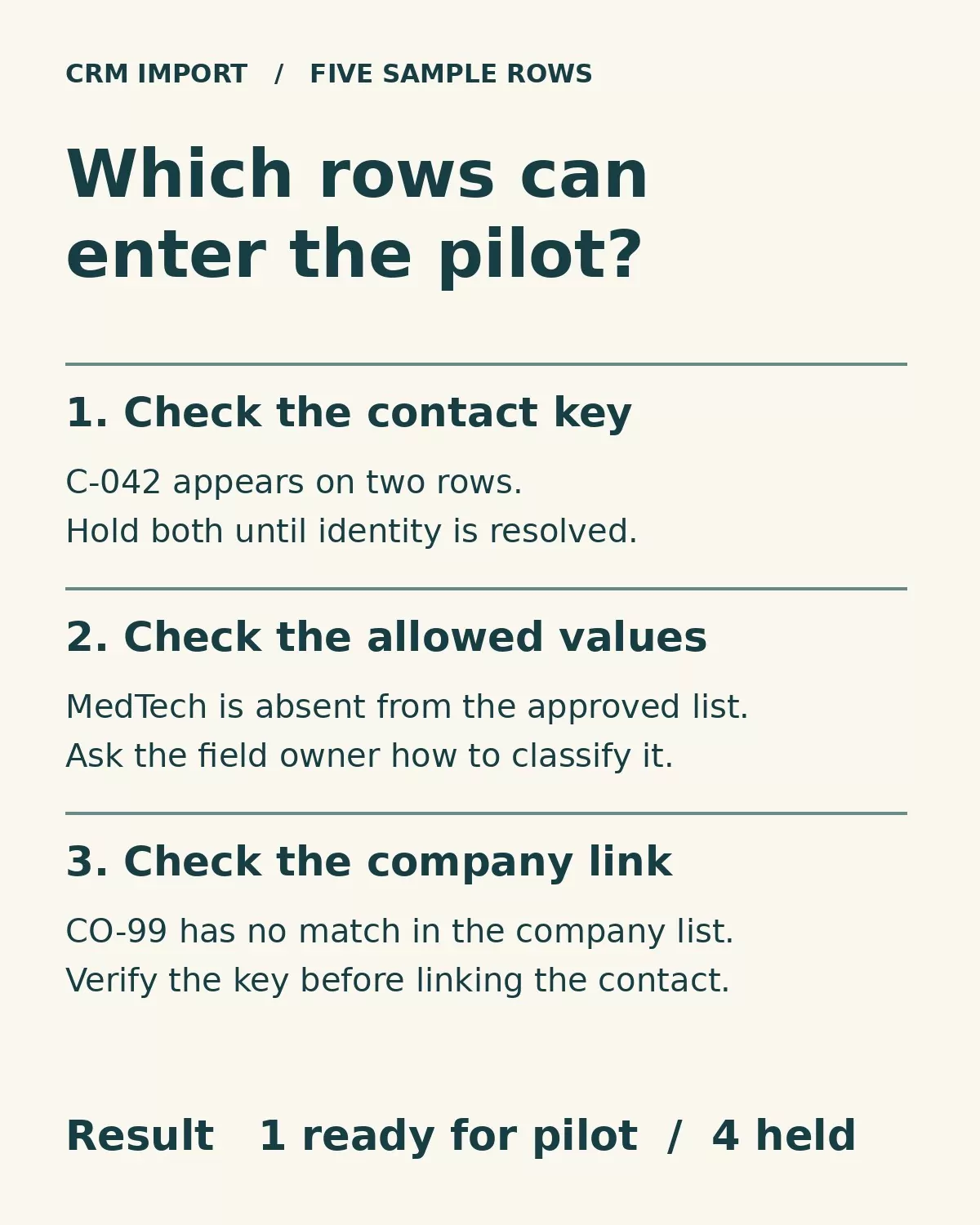
On November 23, 2026, we ran three checks on a synthetic contact CSV. Two rows shared contact key C-042. A third row used “MedTech,” which was absent from the example’s approved industry list. A fourth referenced company, CO-99, was missing from the company list. All five rows contained values in every column, yet only one passed all three checks. These were file checks before upload. The pilot inside your CRM answers a separate question: what does your importer actually write?
1. Decide what one row represents
Finish this sentence for the source file: “Each row represents one ___.” If the answer is “deal,” the same buyer can legitimately appear on several rows. Deleting repeats based on the buyer’s email could discard real opportunities. If the answer is “contact,” two rows with the same contact identifier need investigation before either can update that person.
Separate contacts, companies, and deals when they have different identifiers. Keep the company key on contact rows so you can rebuild the relationship. Two buyers at the same company should produce two contacts linked to one company. For a company-first import, create or match the companies first, export their destination IDs, and then use those IDs to link the contacts if your importer supports that method.
2. Build a field map from the destination backward
Open the CRM’s field settings for the object you intend to import. Note the writable fields, required values for new records, allowed dropdown options, and supported matching keys. Then open an untouched copy of the export. Inspect several actual values under each heading, including unusual ones. The field names below are illustrative. Substitute the exact names and options your account accepts.
| Source column | Destination | Decision before upload |
|---|---|---|
| Contact key | Contact → Legacy contact ID | Keep C-041 as text. Use it for matching only if the CRM supports that unique field. |
| Company key | Contact → Company association | Look up CO-17 in the company list. Hold rows with zero or multiple matches. |
| Industry | Contact → Contact industry | In this file the label describes the individual’s specialty. If your source describes the employer, put it on the company instead. |
| Rep code | Contact → Owner | Translate AJ to an active user identifier accepted by the importer. Ask the sales lead to resolve shared initials. |
| Mobile | Contact → Mobile phone | Preserve country codes and leading digits. Agree how an empty cell affects an existing number. |
| Deal stage | Deal → Pipeline stage | Move “Proposal” to a deal file with a deal key and a valid stage for the intended pipeline. |
Give deliberately excluded columns a reason in the map. For example, “Internal comments — exclude from this import” tells the next operator why the column has no destination. Review automatic suggestions one by one. The Salesforce Data Import Wizard guide explains that the wizard proposes matches and skips unmapped fields. An import can therefore complete while omitting a column your team expected to see.
3. Write the matching and overwrite rules
Divide the file into new records, updates, and exceptions. For updates, a current CRM record ID obtained from that same account is a useful starting point. If you have only a legacy identifier, verify that the importer can match on it and that it already identifies the intended destination record. Merely adding a “Legacy ID” text field does not establish that link. Compare the keys against both the source file and a destination export.
For C-042 in the example, both rows go on hold. Keeping the last row assumes that row is newer and authoritative. Check the underlying records before consolidating them. Treat a shared mailbox such as sales@example.com with the same care if email is your proposed contact key.
Set an update rule for each field: replace the existing value, fill it only when empty, or leave it alone. Suppose the CRM has a verified mobile number and the source cell is blank. If your policy is to preserve the number, test that case in the actual import mode. If the tool cannot enforce the rule, omit Mobile from that update batch. Keep intentional clear requests in a separate, reviewed batch.
4. Check values and relationships before the pilot
List each distinct source value for controlled fields and pair it with an approved destination option. A sales manager might decide “MedTech” belongs under “Healthcare” or that it deserves its own category. Hold it until someone who uses the report decides. For dates, resolve ambiguous entries such as 04/05/2026 from the source locale before formatting them for the importer. Keep phone numbers, postal codes, and padded identifiers as text when opening or exporting a spreadsheet.
Check company associations independently. A valid contact key tells you who the person is. It says nothing about which employer to attach. In the sample, C-045 passed the identity and industry checks but referenced a missing company. Check for a mistyped key or a company awaiting import. HubSpot’s import error guide documents that an invalid association identifier can leave records imported without the relationship. It also explains how an invalid dropdown option can leave a field empty.
5. Run a small pilot and reconcile the result
Export the affected CRM records with their IDs and current field values. Keep this snapshot alongside the original file and the approved map. Check whether the import can trigger assignment rules, notifications, or customer-facing workflows. Use a test environment where available, or an approved small batch with those effects understood.
Include a new contact, a known update with a changed value, an update with a blank mobile number, and two people linked to the same company. Write down the expected record ID or new-record outcome, field values, owner, and company for each. Keep unresolved source rows outside the upload. In the wizard, compare the final mapping screen with the saved map before submitting the pilot.
Afterward, open the resulting records or export them by ID. Did the old contact retain its ID and mobile number? Did both buyers link to the same company? Compare the actual creates, updates, skips, and failures with your expected counts, then inspect field-level warnings even if the counts agree. If the importer created a duplicate where you expected an update, pause the full file and repair the match rule. For a retry, isolate the affected records and account for any records already created.
Keep the approved map with the source export, exception list, pilot result, and import log. Next month, when the export gains a new “Status” column, you’ll have a record of who defined the original field and exactly what it was supposed to mean.