
A CRM follow-up workflow can take care of routine reminders, record updates and carefully defined messages, so your team does not have to remember every next step. To make it run reliably, decide who enters the workflow, what happens next, which events stop it and who handles exceptions. “Runs itself” should mean less repetitive administration, with clear human ownership when the situation changes.
Start with one narrow use case: following up on an inbound inquiry that your business is allowed to contact. Once that works, you can adapt the design for proposals, renewals or other stages. Combining every customer journey in the first build makes errors harder to diagnose.
This is a research-based implementation guide, not a report of a workflow tested in a live CRM. The field names, timing and example rules below are proposed design choices. Map them to your software’s actual capabilities, subscription and communication requirements.
Define the CRM follow-up workflow before opening the builder
Write the intended result in ordinary language. For example: a new eligible inquiry should reach a named owner, receive the appropriate next action and stop receiving automated follow-ups once a person takes over the conversation.
Identify the real starting event. “A new inquiry was submitted” is more precise than “a contact was updated.” A broad update trigger can fire because somebody fixed a phone number, changed a tag or imported an old record. Decide which changes are allowed to start a new follow-up and which merely update the existing one.
Draw the process first, including waiting and failure states. Our guide to mapping a manual business process before automation helps identify those steps. The goal is a small, understandable workflow that a colleague can explain without reconstructing it from dozens of rules.
Create the fields that make the next action unambiguous
You need enough information to decide what should happen, who owns it and whether it already happened. Use existing CRM fields where they have the right meaning. Add a new field only when it serves a clear decision or audit purpose.
| Information | Why the workflow needs it |
|---|---|
| Contact and inquiry identifiers | Distinguish the person from the particular request being followed up |
| Source and received time | Explain where the inquiry came from and when the clock started |
| Assigned owner | Give tasks and exceptions a responsible person |
| Current state | Separate waiting, active conversation, paused, completed and review-needed records |
| Next action and due time | Show the specific work expected next |
| Contact eligibility and suppression | Prevent messages that should not be sent |
| Latest reply or meeting event | Stop inappropriate reminders when the conversation advances |
| Completed step and outcome | Help prevent duplicates and explain past actions |
A missing owner should send the record to a review queue. Do not let the automation invent a sender or silently assign sensitive customer work to whoever last edited the contact. If routing is part of a marketing handoff, agree on acceptance and responsibility using the marketing-to-sales handoff checklist before configuring the rules.
Separate task automation from automatic messages
An internal reminder and a customer email have different consequences. A task can ask the owner to review context and choose a response. An automatic email leaves the system immediately, so it needs stricter conditions and a tested stop mechanism.
Begin with automatic assignment and tasks if your data is incomplete or your messages require judgment. For repeatable situations, consider a short automatic message after you have verified eligibility, content and the sending configuration. Pricing negotiations, complaints and unusual requests should generally move to a person who can read the context.
Software features also differ. HubSpot’s current sequence documentation describes timed emails and tasks, configurable unenrollment for replies or meetings, a connected individual work email requirement and applicable Sales or Service seats. It lists sequences under Professional and Enterprise subscriptions for those hubs. Do not assume a free CRM account includes every sequence function.
Zoho CRM’s workflow documentation describes record triggers, conditions and actions such as field updates, notifications and tasks. That supports building a rules-based process, but it does not establish that every proposed action, integration or volume is available in your edition. Check the exact account before designing around it.
Use a small state model rather than a chain of blind delays
A delay only tells you that time passed. It does not prove the contact still needs the next message. Put a fresh eligibility check after the wait and as close as possible to the customer-facing action.
| Current situation | Proposed next action | What must stop automatic follow-up |
|---|---|---|
| New eligible inquiry, owner assigned | Create the first response task or approved acknowledgment | Suppression, invalid contact data or an existing active workflow for the same inquiry |
| Waiting after the first response | Check current state, then create the next permitted action | A reply, booking, manual pause or changed eligibility |
| Reply or meeting received | Hand the conversation to the owner | All remaining no-response messages for that inquiry |
| Delivery or integration uncertain | Pause the affected action and open a review item | Blind resend or advancement to the next message |
| Cadence finished without a response | Close the sequence or request a human decision | Automatic indefinite recycling into the same cadence |
Define these states in terms your team understands. A contact can remain in the CRM after a follow-up ends. Ending a sequence should not require deleting the customer record or losing the history.
Build one illustrative inquiry cadence
Suppose a small service business receives a request about a consultation. The following timing is illustrative, not a proven optimum or a legal standard.
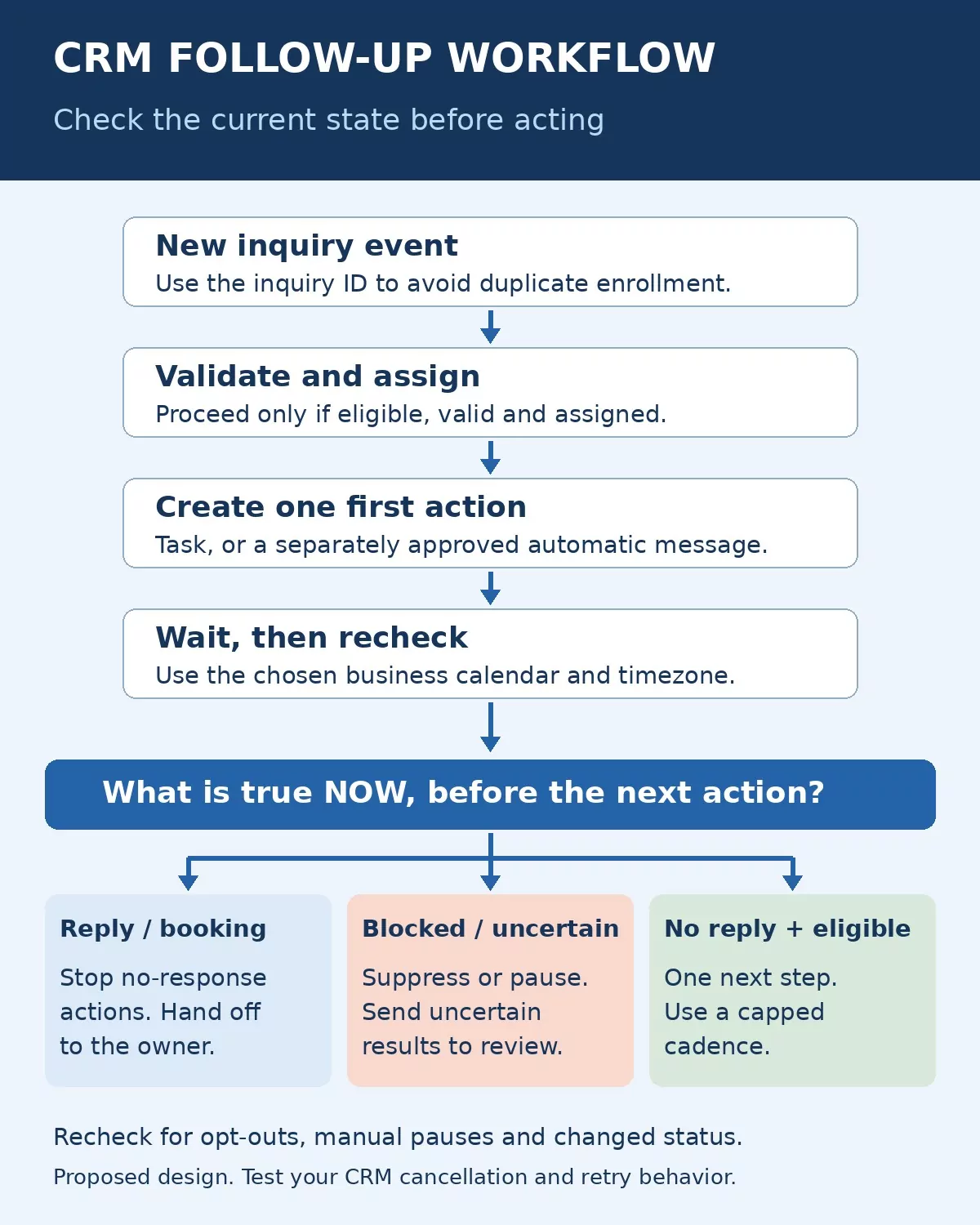
- On the verified inquiry event, locate or create the correct contact, check for a matching active inquiry and assign the owner. Record the source event so the same submission cannot start the same process twice.
- Create a response task due within the team’s agreed service window. If you send an acknowledgment automatically, keep it limited to accurate information about the request and next step.
- After two business days, check whether a reply, meeting, opt-out or manual intervention has occurred. If none has, create one follow-up task or send the separately approved message.
- After a further three business days, check the same conditions again. Ask the owner to decide whether another contact is appropriate rather than continuing an endless series.
- On a reply or confirmed booking, cancel outstanding no-response actions for that inquiry and give the owner a task that reflects the actual conversation.
Choose the timezone, business-day calendar and out-of-hours behavior explicitly. “Two days later” can mean elapsed hours or two working days depending on the feature. Verify the configuration with a Friday inquiry and a holiday before promising a response schedule.
Keep each message useful. Reference the actual request, explain the next action and make it easy to reply. Avoid fake familiarity, unsupported urgency or subject lines that imply a conversation that never occurred.
Prevent duplicate work and stale sends
Use a stable combination of inquiry ID, workflow version and step to identify an action. Before creating another task, look for the existing matching action. A contact email alone is not always enough: one customer may submit more than one legitimate request.
When an integration is retried, it should update or reconcile the existing work where possible. A timeout after a send request is an uncertain result, not proof that nothing was sent. Check the provider’s activity or delivery record before trying again. If the result cannot be established, route it for review instead of risking a second message.
Replies can also arrive between a scheduled check and the actual send. Use the CRM’s native cancellation or unenrollment features where supported and test their behavior. A late condition check reduces exposure, but it is not a universal guarantee against simultaneous events. If your platform cannot reliably stop queued messages, keep that step as a human-reviewed task.
Define re-entry separately. A later inquiry may justify a new workflow; an ordinary record edit should not automatically restart the old one. Preserve the previous history so the owner can see both the earlier conversation and the new reason for contact.
Make eligibility and opt-outs part of the design
The FTC’s CAN-SPAM compliance guide explains that US commercial email rules also cover business-to-business messages. Applicable requirements include accurate sender information and subject lines, identification and postal-address requirements, an opt-out method and honoring opt-outs within ten business days. A message’s primary purpose matters; an existing relationship alone does not make every email transactional.
Maintain suppression centrally and check it at sending time. As a stricter operational choice, stop affected marketing actions promptly when an opt-out is recorded rather than treating the legal deadline as a target. Preserve the minimum record needed to enforce that choice. A new import should not quietly erase a previous suppression.
This guide concerns email workflow design. Text messages, automated calls and recipients in other jurisdictions require a separate review of applicable rules. Do not treat permission for one channel or purpose as blanket permission for another.
Test the exception paths before enabling customer sends
Use permitted test records and addresses controlled by your team. Start with internal tasks or a supported test mode. Some products restrict particular features in sandboxes, so verify what your testing environment actually exercises.
| Test | Expected result to record |
|---|---|
| Submit the same inquiry event twice | One active workflow and one instance of each intended action |
| Reply during a waiting step | Remaining no-response messages stop; the owner gets the conversation |
| Book through the calendar your team uses | The real integration records the booking and stops the relevant follow-up |
| Record an opt-out just before the next step | The customer-facing action is suppressed |
| Remove the owner or disconnect sending access | An exception is visible with a responsible reviewer |
| Simulate an uncertain action result | The workflow reconciles recorded activity or pauses for review |
| Submit outside business hours | The next due time follows the chosen calendar and timezone |
Record the actual tester, date, account, plan, workflow version and observed outcome when you run these tests. A proposed test table is not evidence that the workflow passed. Fix the failed paths and repeat the affected tests before expanding the rollout.
Give someone ownership of the exception queue
Review overdue tasks, failed actions, unassigned inquiries and records paused for uncertainty. A successful scheduled run does not prove the message reached the right person or that a representative completed the follow-up.
Track a few measures with clear definitions: eligible inquiries assigned, first actions completed within the agreed window, duplicate actions, suppressed sends and unresolved exceptions. Separate delivery failures from customer nonresponse. Avoid counting a queued email as a completed customer conversation.
Secure the connected mailbox and integration account. The FTC’s small-business cybersecurity guidance recommends measures including multifactor authentication, limiting sensitive access and email authentication using SPF, DKIM and DMARC. Have a qualified administrator configure the sending domain; these controls help protect the channel and do not guarantee inbox placement.
Keep a short change log and a way to pause customer sends while retaining the records. Before changing a live rule, decide how existing waiting contacts will be treated. New settings and old queued actions may not behave identically.
A CRM follow-up workflow should make ownership visible
A reliable CRM follow-up workflow removes repetitive scheduling while keeping the next action understandable. Start with one inquiry type, check eligibility before each send, stop on meaningful events and give uncertain results to a named person. Once the routine and exception paths work together, the workflow can run with less daily prompting—and your team can spend more time responding to customers who actually need a conversation.