

Automatic invoice reminders work best when they follow an accurate invoice record: the right customer, a clear due date, a current unpaid balance and someone responsible for replies. QuickBooks Online, Xero and Wave can handle scheduled nudges, but their controls differ. Set up the schedule, check which invoices it affects, and test the stop conditions before you rely on it.
A reminder does not collect money, fix a disputed bill or know that a customer paid outside the system until the records reflect that payment. The useful goal is consistent follow-up with fewer mistakes—not a longer chain of increasingly urgent emails.
This guide uses official product instructions reviewed on November 19, 2026. It covers documentation-based setup and a proposed verification process, not a hands-on test of customer accounts or email delivery.
1. Prepare the invoice data before enabling reminders
Start with a small, clean group of invoices rather than the entire overdue list. Confirm the billing contact, invoice number, due date, currency, remaining balance and whether the original invoice reached the customer. Check for credit notes, partial payments, a changed purchase order or an unresolved service issue.
Separate the person who receives the invoice from the person who can approve payment. A reminder sent to a former employee can look successful in your software while doing nothing useful. For customers with an accounts-payable team, agree which mailbox should receive routine notices and who handles an exception.
Then reconcile recent receipts. If a customer paid by bank transfer yesterday but the invoice is still open, an automatic overdue notice may be technically consistent with the software and wrong in practice. Put a review step before the next scheduled notice whenever payment status is uncertain.
Keep an owner for each exception. “Awaiting a credit note” and “customer says paid” need different next actions. Our guide to tracking overdue invoices explains how to organize the wider collection process; reminders should be one part of that process.
2. Choose a schedule you can support
Use the agreed payment deadline as the reference point. The following is an illustrative policy for ordinary, undisputed invoices, not a legal requirement or a universally optimal sequence.
| Stage | Example timing | Purpose | Review before sending |
|---|---|---|---|
| Advance notice | 3 days before due | Make the invoice easy to find | Correct contact and original delivery |
| First overdue notice | 3 days after due | Ask for payment or an explanation | Recent payments and credits |
| Human follow-up | 7 days after due | Resolve an exception or agree the next step | Replies, disputes and payment commitments |
You do not have to automate every stage. A high-value project invoice with an unresolved acceptance issue may deserve a personal conversation immediately. A routine monthly service bill may suit a standard notice. Choose the treatment based on the relationship and the underlying facts.
For a hypothetical invoice due December 10, the example dates are December 7, December 13 and December 17. Check how your product treats weekends and its sending window rather than assuming that “three days” means three business days. These dates illustrate the policy; they do not predict an actual send.
3. Set up automatic invoice reminders in QuickBooks Online
Intuit’s US instructions place the control under Settings, Account and settings, Sales, then Reminders. Select Edit and enable Automatic invoice reminders. Configure Reminder 1 with the number of days and whether it falls before or after the due date; add a second or third reminder if needed.
Customize each subject and message, use supported invoice variables, then select Save and Done. The documented window extends up to 90 days before or after the due date. Crucially, QuickBooks sends matching unpaid-invoice reminders only for invoices you have already emailed.
That makes original delivery part of setup, not an administrative detail. An invoice entered into the books is not necessarily eligible. Check the customer’s email, the due date and the original send before investigating the schedule.
QuickBooks Online Advanced also has a workflow route. Keep one clearly documented approach so an administrator can identify overlapping rules. A second automation should not accidentally repeat the same notice.
4. Configure Xero and check the reply destination
Xero’s current setup instructions require a current customer email, invoices marked as sent, and an administrator or standard user role. In Sales, open Invoices, select Invoice Reminders: Off and enable Email customers when an invoice is. Review the existing reminders before saving.
You can add reminders using due in or overdue by, enter the day offset and customize the message with placeholders. An offset of zero means the due date. Xero supports up to five reminders, with optional online-invoice details, PDF links and a minimum amount below which reminders are suppressed.
Pay particular attention to replies: Xero says they initially go to the login email of the person who first enables reminders, and that address can be edited. Route them to a monitored address with an accountable owner. A working sending schedule is insufficient if the explanation for nonpayment lands in an unattended inbox.
Before rollout, identify which existing sent invoices are affected. Treat the organization-wide controls as a change to an active collection process, not just a preference for the next invoice.
5. Set Wave defaults and review existing invoices separately
Wave allows scheduled reminders for businesses accepting online payments or subscribed to Pro. Open Sales & Payments, Invoices and the individual invoice. Select the available reminder checkboxes: 14, 7 or 3 days before due; the due date; or 3, 7 or 14 days afterward.
The customer profile needs an email address. Scheduled notices go only to its primary email; additional contacts require manual reminders. Options depend on the invoice and due dates, and reminders stop after the invoice is marked fully paid.
For defaults, open the business-name menu, Business settings, Invoices and estimates, then Reminder settings. Select the schedule and save. These defaults apply to new invoices, not existing ones, and this setting does not apply to recurring invoices.
Review older invoices individually. Clearing the default checkboxes affects future invoices; Wave provides a separate Turn off all existing reminders control. Distinguish a prospective default change from clearing an already scheduled backlog.
6. Compare the controls that change your rollout
| Product | Important documented distinction | Operational decision |
|---|---|---|
| QuickBooks Online | Original invoice must already have been emailed | Verify original delivery before blaming the schedule |
| Xero | Sent status, reply destination and organization-level controls matter | Check the affected population and monitored mailbox |
| Wave | New-invoice defaults differ from existing reminders | Review the backlog separately from future settings |
Start with the accounting system you actually maintain. Buying another app will not solve an inaccurate balance or an unmonitored mailbox. Consider a separate collection tool only when you can name the missing capability, such as a specific approval process or consolidated customer follow-up, and verify how it will coexist with native reminders.
These are configuration differences, not a performance ranking. No delivery-rate or time-to-payment advantage was measured for this guide. Subscription costs, payment-processing charges and any add-on costs should be evaluated separately from the reminder schedule.
7. Test the decision to send, not just the email design
Use an authorized test environment or a properly identified test record addressed to your own controlled mailbox. Keep it separate from real customer balances and financial reporting. Do not send experimental notices to customers or create misleading production invoices merely to test a template.
The following acceptance register is a proposed test plan. Record the date, product, setting, expected outcome, actual outcome and evidence. Mark a case as not tested until someone has actually performed it.
| Case | Expected business outcome | What to inspect |
|---|---|---|
| Eligible unpaid invoice | One intended notice at the configured stage | Record history and controlled inbox |
| Fully paid invoice | No further payment demand | Saved payment status and later activity |
| Partially paid invoice | Correct remaining amount or human review | Balance shown in the rendered message |
| Disputed invoice | Pause routine chasing and assign an owner | Actual available exclusion or manual procedure |
| Missing or changed contact | Route to correction, not repeated failed sends | Recipient record and error handling |
| Changed default or rule | Only the intended invoices are affected | New invoices and existing backlog separately |
The disputed-invoice row describes the policy you should implement; it does not claim that every product detects disputes or provides the same pause control. If your setup cannot enforce an exclusion, keep that case in a manual queue until there is a reliable method.
Similarly, distinguish a message recorded as sent from one delivered to a mailbox, read by the customer or followed by payment. Those are separate outcomes. Review the evidence each system actually provides and avoid interpreting a successful automation run as successful collection.
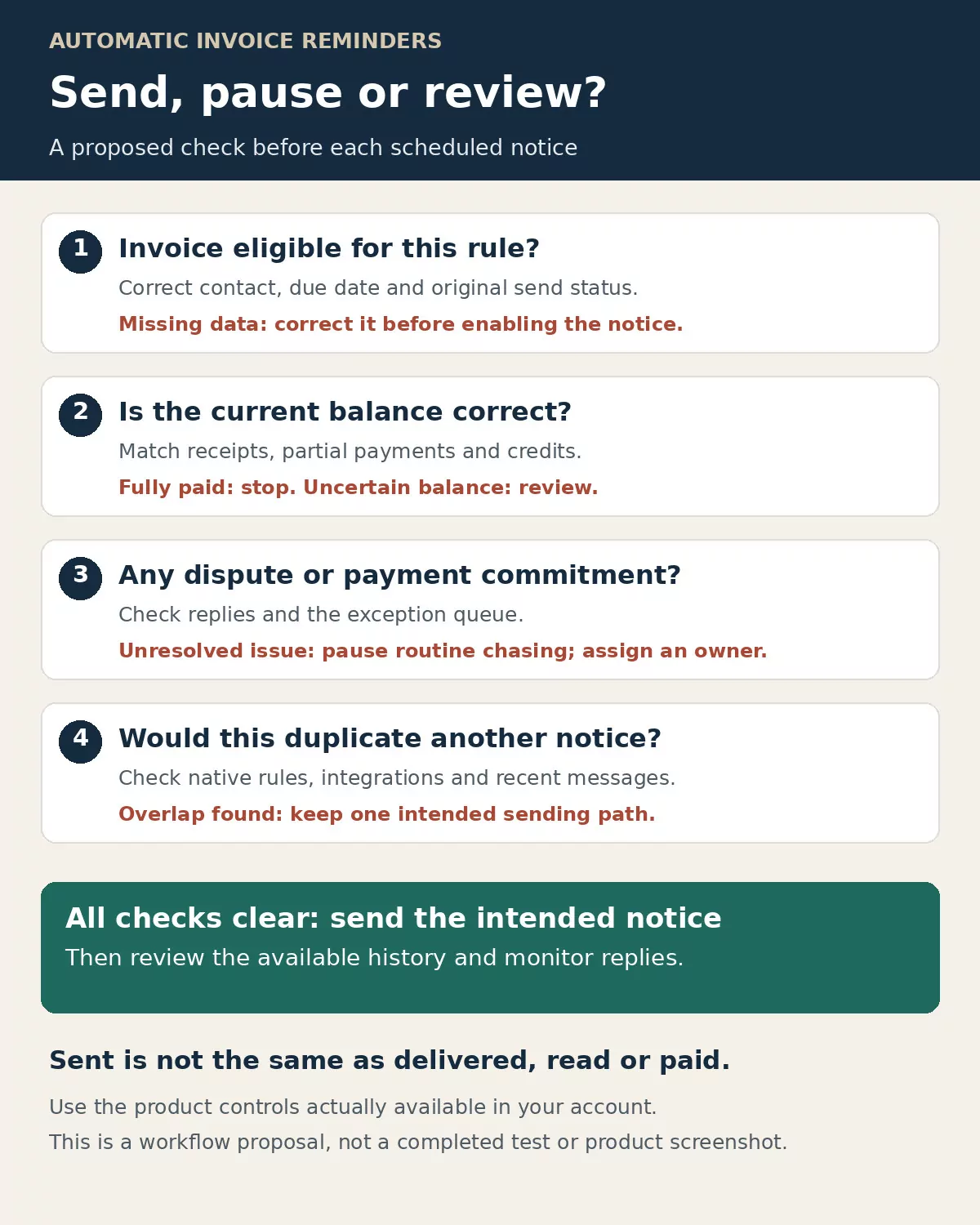
The decision aid separates a scheduled notice from a justified one. Use the controls your account actually supports, and keep unresolved cases with a named person.
8. Write notices that make resolution easy
A useful notice identifies the invoice, the amount still outstanding, the due date, a familiar payment route and an address for questions. Keep the subject descriptive and the message brief. The tone should match the stage rather than assuming that every overdue balance is deliberate refusal.
For example: “A reminder that invoice [number] has an outstanding balance of [amount], due [date]. Please use the original invoice to arrange payment. If you have already paid or need a correction, reply with the payment reference or issue so we can update our records.” Replace those placeholders using the product’s supported fields; do not leave literal brackets in the saved customer message.
Avoid adding late fees, legal threats or a changed deadline through a template without reviewing the agreement and applicable requirements. A reminder should communicate the actual arrangement, not silently create a different one.
Protect the payment route as well. The FBI’s business email compromise guidance recommends verifying changes to account numbers or payment procedures with the person making the request. Use a separately verified contact route for a change; a familiar-looking email thread alone is not sufficient confirmation.
9. Keep a daily exception queue and a useful record
Assign someone to review replies, failed sends, unrecorded receipts, disputes and promises to pay. Each item needs a next action and a review date. Repeated automatic messages cannot answer a customer who says the purchase order is missing.
Retain the original invoice, relevant credits, payment evidence and the communication history in an orderly system. The IRS’s recordkeeping guidance identifies invoices, receipts and other supporting documents as evidence for business records. A reminder log adds collection context; it does not replace the underlying transaction documents.
Measure avoidable errors alongside activity. For example, track paid invoices that received another notice, incorrect recipients, unresolved replies and invoices skipped because of missing data. Compare like-for-like invoice groups before claiming that a new schedule improved payment timing. More emails sent is not, by itself, an improvement.
Make automatic invoice reminders a controlled routine
Reliable automatic invoice reminders depend on a clean invoice record, a schedule the business understands and an exception process that a person actually owns. Configure the appropriate product controls, verify their scope, and test both the intended send and the reasons to stop.
Begin with a manageable invoice group and correct the failures before expanding. The best result is a customer who receives an accurate, useful notice—and a finance team that can explain why it was sent.