

To import contacts into a CRM, start by deciding which rows should create new records and which should update people already in the system. Export your existing contacts, choose how to match them, and map only the fields you intend to write. Then import a small batch that includes the awkward cases. Check who owns each contact, which company it belongs to, and whether it can receive marketing email before you load the rest.
A successful upload tells you the CRM could read the file. It may take a salesperson opening a contact to discover that the import replaced a current phone number with an old one. And a contact can arrive with the right name and email while its company link fails. Give yourself a way to catch both kinds of errors before the whole team works from the new data.
1. Export the records you’re about to touch
Keep an untouched copy of the source file. If the destination CRM already contains contacts, export those records too. Include each contact’s destination record ID and the fields you plan to update. Depending on the job, that may mean owner, company association, lifecycle stage, phone, or lead source. If subscriptions or associations live in separate exports, save those as well. Record the export time so you can identify legitimate changes made afterward.
Limit access to the people doing the migration and set a date to delete working copies when reconciliation is complete. The FTC’s guide to protecting personal information explains how to decide what customer data to retain.
The export does two jobs. It gives you a list to match against, and it gives you the old values if an update goes wrong. A spreadsheet of contacts alone may be insufficient to restore company links, subscriptions, and activity history. Write down which of those you can recover and how before starting a bulk update.
If you’re moving between CRMs, decide which parts of the old system your team actually needs. A contact sheet usually moves basic fields. Deals, notes, and activity history may need their own migration steps. Start by identifying the records people need for a regular workday: the account a rep follows up with, the deal it belongs to, and the last conversation anyone had with that customer.
2. Decide how the CRM will recognize the same person
For updates in a CRM you already use, match on its record ID whenever you have it and the importer supports it. That ID still points to the same record when a customer changes their email address. When migrating between systems, an old CRM ID can help if the destination supports matching on a unique external ID and already holds the corresponding values. For a later update, also keep a crosswalk pairing old IDs with the new IDs the destination assigned.
Use email when it’s the best reliable identifier available and it belongs to one person. Names and company names can help you investigate a possible match. Two people can share a name at the same employer, and several contacts can share a team inbox. If you see two plausible matches, hold the row for review.
| What you find | What to do |
|---|---|
| The destination ID matches one contact | Update that record using its ID. |
| One verified personal or work email matches one contact | Update by email if you’re keeping that address and the importer supports email matching. |
| The incoming email is new, but you can confirm the person already exists | Find the existing record ID and use it to make the email change. |
| The email is shared, two records look plausible, or identifiers disagree | Hold the row and resolve the match before importing it. |
| You checked the likely matches and the person is new | Create a contact with the destination’s required fields. |
Check for duplicates both within your spreadsheet and against the destination export. If several rows appear to describe one person, use this guide to review duplicate CRM contacts before choosing which values to keep. If two rows describe the same person, choose field values using the most reliable source for each one. The newest row can still carry a stale job title or a generic phone number. Keep the unsubscribe if one source says a contact opted out and another file has no marketing status.
Matching rules vary by tool. HubSpot documents Record ID and email as contact identifiers. Salesforce’s Data Import Wizard can match business contacts by Salesforce ID, name, email, or an external ID. Check the matching options in your own importer and verify which one is selected before you submit the file.
3. Prepare a CSV the CRM can read
Use one header row. For a contacts-only import, start with one row per person. Remove subtotals, blank rows, repeated headers, and columns that serve only as spreadsheet notes. Use the template and file type your importer accepts. If it accepts CSV, save in UTF-8 and inspect the exported file to make sure names, accented characters, and punctuation survived.
Set phone numbers, record IDs, and postal codes to text while preparing the sheet. A spreadsheet can strip leading zeros or change how a long numeric ID is stored. When a leading zero has already vanished, go back to the original export to recover it. Confirm the expected date format, and resolve dates such as 04/07/2026 against the source before uploading them. Map dropdown entries to values that already exist in the CRM. “Trade show,” “Tradeshow,” and “Event” should only become one value if they mean the same thing for your reporting.
A narrow update file is easier to check. If your sole job is to refresh phone numbers, the file might look like this:
Record ID,Phone
10482,+12025550147
10483,+12025550168
Those headers and values are illustrative. Match the exact ID field and accepted phone format in your CRM. For new contacts, begin with the required fields and add only the information the team can use or verify.
4. Map columns and protect the fields people rely on
Field mapping tells the importer where to put each column. Read the proposed mapping even if the software filled it in. A spreadsheet header called “Owner” might refer to the salesperson in the old CRM, whose user account may be inactive in the destination. “Company” might be a text field on the contact, while sales needs an actual link to the account record to see the contact alongside open deals.
Check contact-to-company links using the identifier your importer supports. A destination company ID is useful when branches have similar names or subsidiaries share a web domain. Open each test contact’s linked company and make sure it’s the intended account. If the contact exists but the company link is missing, confirm whether your tool supports an association-only repair before retrying the whole row.
Decide how to handle blanks and existing values. HubSpot documents that a blank import cell leaves an existing property value in place. Verify the behavior in the tool you’re using and treat an intentional field clear as its own job. For a routine update, leave untouched fields out of the mapping entirely. If the file has new phone numbers for some people and new owners for others, process those changes separately when that makes the intended edits easier to verify.
Carry opt-outs over before campaigns resume
Check how your CRM or connected email platform stores opt-outs and suppression lists. Move that information using the supported process, then verify it in the system that sends the email. HubSpot, for example, has a separate opt-out import that can suppress an address even when it has no contact record. A field labeled “Lead Source” or “Event Attendee” tells you where a name came from. Keep it distinct from the subscription status used by your email tool. Leave unknown permissions out of marketing sends while you resolve them. For US commercial email, the FTC’s guidance on honoring opt-outs applies after a platform change as well.
Check workflows, sales sequences, assignment notifications, and connected apps too. A contact can meet an enrollment rule as soon as a property changes. Use a sandbox if one is available. For a live test, coordinate with the owners of those automations and use import-specific exclusions or carefully scoped pauses where supported. Check whether resuming a workflow could enroll the imported records retrospectively.
5. Run a pilot before you import contacts into a CRM at scale
Select a small batch you can inspect one contact at a time. Include a new contact, an existing contact whose email changed, a blank in a mapped field, an owner assignment, a contact linked to a company, and a contact who opted out. Include a name with accents or a value with leading zeros if those appear in the real file. Put ambiguous matches in the review queue and confirm they stay out of the upload.
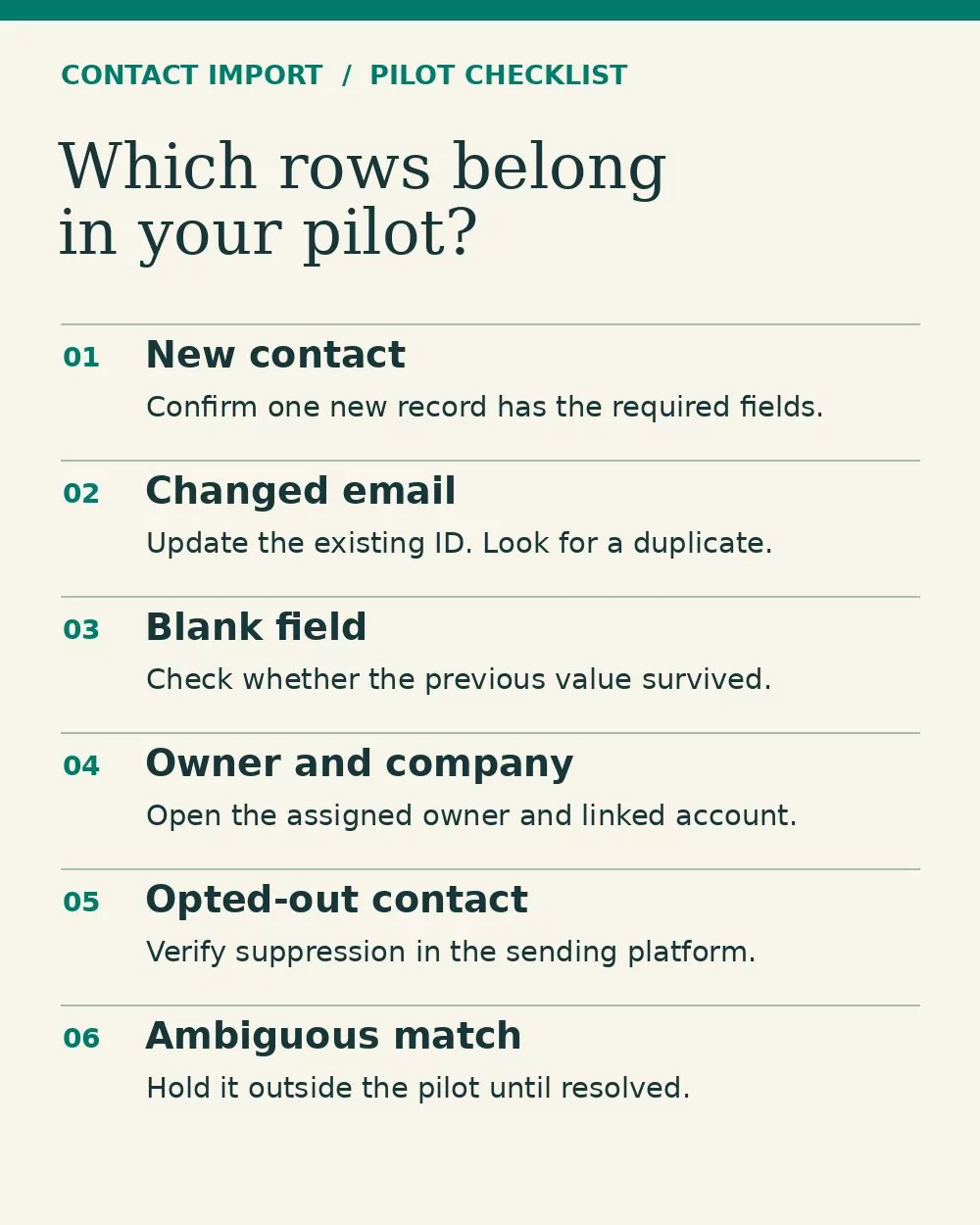
Before running the pilot, write down the result you expect for each row. For example, contact 10482 should receive a new phone number, keep her current owner, and remain opted out. An existing prospect with a new email should still have the same record ID and account link. Open the records after the pilot and check those details against your notes. Also inspect the import log and any relevant workflow or sending history.
In a live CRM, record which pilot rows succeeded and which IDs they received. Exclude those successful rows from the remaining production batches unless you are deliberately applying a verified update. Repeating a create-only pilot can lead to duplicate attempts or skipped rows, depending on the importer.
6. Check the full import before you hand it over
Run the remaining rows with the settings you verified in the pilot. If the job is easy to split, keep creates and updates in separate files. Name each batch so you can find its import history, and add an import marker where the CRM supports one and the field has no unintended workflow effects.
For a simple one-row-per-contact job, suppose you expect 120 creates and 80 updates from 200 submitted rows. The results show 119 created, 79 updated, and two skipped. Find the two specific rows and check why they were skipped. Then confirm that the 198 processed contacts include the right records and that their company links, owners, and opt-outs are correct. In multi-object imports, check contacts and associations separately because the tool may report those as different outcomes.
Save the error report. Retry failed rows after correcting the cause, and check for partly successful records before retrying. If a batch updated the wrong data, pause dependent workflows in coordination with their owners, identify the affected IDs, and check the importer’s undo options. Pipedrive, for example, documents a 48-hour window for a global admin to revert an import from its history. If you need to restore fields from an export, confirm that you’re undoing the import without overwriting valid edits made since then. Verify the corrected records before releasing any held automation.
When the contact list is ready to use
The safest way to import contacts into a CRM is to make a small set of changes you can explain and verify. Before handing the list back to sales or marketing, have someone who uses the CRM open a few records they know. Ask them to confirm the account, the owner, and the status they’d rely on before following up. Keep the source file, the field mapping, and the final exceptions together. The next time someone asks why a contact changed or why a row was left out, you’ll have a record of the decision.